KAMBERI GROUP EN: Unterschied zwischen den Versionen
K (Änderungen von Tas (Diskussion) wurden auf die letzte Version von Dmytro Tkachenko zurückgesetzt) (Markierung: Zurücksetzung) |
(→Lost Card Gentlemen Workflow Exit VU) |
Inhaltsverzeichnis
Lost Card Gentlemen Workflow Exit VU[Bearbeiten | Quelltext bearbeiten]
USECASE SCENARIO: A gentleman lost his card in the club. He wants to pay for lost card and leave.
Note: This recovery card option takes 50E "card restore fee" and shows 0 balance cards.
- Go to the Exit VU
-
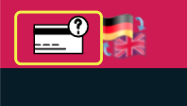
Select "Manage card" button at the top right corner

- Confirm personnel access with the manager card
- Select "Lost card" option

- Visually find the lost card in the list by a locker number or issue date/time

- Check the card details for additional information if needed
-
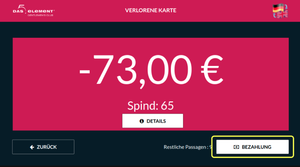
Select "Payment" button and pay for the card with either cash or a credit card. Additional 50E "card restore fee" is included in this case.

- The manager can now open the door for him, and gentleman can leave the club.
Entrance VU
USECASE SCENARIO: A gentleman lost his card in the club. He wants to stay and continue the party.
Note: This recovery card option shows only cards with 0 or nagative balance.
- Go to the Entrance VU through the gate
- Select "Manage card" button at the top right corner

- Confirm personnel access with the manager card
- Enter locker number for the lost card

- Check the card details for additional information if needed
- Select "Payment" button and pay for the card with either cash or a credit card. Additional 50E "card restore fee" is included in this case.

- Take a newly reissued card from the VU.
- All information on the card such as amount of free products, locker number, entrance/exit count is copied from the lost card to a new one.
- The last recorded "entrance" is removed on a new card.
- The gentleman now can enter the gate with this new card and continue the party.
Lost Card Ladies Workflow[Bearbeiten | Quelltext bearbeiten]
Exit VU
USECASE SCENARIO: A lady lost her card with positive balance on it in the club. She wants to withdraw money from the card and leave.
Note: This recovery card option shows only cards with positive non-zero balance.
- Go to the Exit VU
-
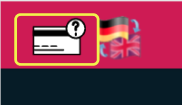
Select "Manage card" button at the top right corner

- Confirm personnel access with the manager card
- Select "Withdraw money" option

- Visually find the lost card in the list by a locker number or issue date/time

- Check the card details for additional information if needed
- Select "Payout" button and withdraw money from the card.

- The manager can now open the door, and the person can leave the club.
Load Card Workflow[Bearbeiten | Quelltext bearbeiten]
Exit VU
USECASE SCENARIO: If the system did not work correctly for some technical reason, people left the club without paying for services, this option allows paying owed money once the correct operation of the system resumes.
Note: This payment card option shows only cards with nagative balance.
- Go to the Exit VU
- Select "Manage card" button at the top right corner
- Confirm personnel access with the manager card
- Select "Load card" option
- Visually find the lost card in the list by a locker number or issue date/time
- Check the card details for additional information if needed
- Select "Payment" button and pay for the card with either cash or a credit card
- The manager can now open the door for him, and gentleman can leave the club.
Unbind Locker Workflow[Bearbeiten | Quelltext bearbeiten]
Exit VU
USECASE SCENARIO: A gentleman left the club without payment. While the police is looking for him, the locker can be used by another person. This option allows to unbind locker from the card.
- Go to the Exit VU
- Select "Manage card" button at the top right corner
- Confirm personnel access with the manager card
- Select "Unbind locker" option
- Visually find the card that you wish to unbind locker from in the list
- Unbind the locker by pressing "OK"
Gift Cards Workflow[Bearbeiten | Quelltext bearbeiten]
Buying and Using Gift Cards on Entrance VU[Bearbeiten | Quelltext bearbeiten]
- Select "Gentleman"/"GiftCard" option
- Select one of the available gift cards (50, 70, 100, 140 E)
- Select "Payment" button and pay for the card with either cash or a credit card.
- Take the card
- Select "Check-in" option
- Insert the card again
- Select locker size
- Select "Payment" button, wait for payment to finish, take the card
- Enter the gate
After that, gift card can be used as a regular gentleman card.
Note: Funds on a gift card can not be paid out on Exit VU, and can only be used as pay for the next entrance or to purchase goods on POS.
Buying gift cards in web shop and using them on Entrance VU[Bearbeiten | Quelltext bearbeiten]
You can buy gift cards in web shop as a registered user, or using a "Guest mode".
- From the main shop page select a gift card that you want to buy
- Confirm your selection on the cart page
- Next, if you've already registered before, enter your login information. Alternatively, you can choose a "Guest" mode and proceed without registration.
- On the next step select desired payment provider
- Click "Payment" button. You will be redirected to a payment provider page
- Enter payment data and pay for your gift card
After that, you will be redirected to a page where you can download invoice and gift cards in PDF format, or, if you are a registered user, they will be emailed to you after you finish transaction.
- Scan the barcode from the gift card PDF on the Entrance VU barcode reader with any convenient for you method (print it or use a smartphone)
- Select "Payment" button, wait for payment to finish, take the card
- Select "Check-in" option
- Insert the card again
- Select locker size
- Select "Payment" button, wait for payment to finish, take the card
- Enter the gate
Ladies Cards and Deposit[Bearbeiten | Quelltext bearbeiten]
Issuing a Lady Card[Bearbeiten | Quelltext bearbeiten]
You can issue a lady card and assign a deposit for it on POS as a "kasse2" user.
Note: In the process of issuing a card all funds that are left on the card from previous owners will be discarded.
- Log in to POS and select "RFID Karte Damen" tile
- Select "RFID Damen Karte mit Steuer" card type
- Select "Add new user" icon at the top and fill in all necessary user data. Once you are done, click "Save" button (looks like an old school diskette).
- Confirm user selection by pressing "Kunde auswahlen" button.
- Scan an RFID card that will be issued to the lady.
- You will see that two products were added to the order. Confirm it by pressing the button at the bottom left.
- After that, make confirmation with a manager card and take the newly issued card.
Assigning a Deposit to the issued Lady Card[Bearbeiten | Quelltext bearbeiten]
After issuing a lady card, you can assign a deposit to it at any time.
- Log in to POS as "kasse2" user and select "RFID Karte Damen" tile
- Select "Pfand RFID Karte Damen" tile
- Scan a lady's card that you wish to assign a deposit for
- A deposit will be assigned to the scanned card and the same deposit amount will be withdrawn from it after pressing "Bezahlung". The card will have a negative balance at this point.
- Confirm the transaction with the manager card
Returning a Card with Deposit[Bearbeiten | Quelltext bearbeiten]
You can return a card that has a deposit assigned to it at the entrance VU.
Note: Before returning a card with deposit on it, make sure that it doesn't have negative balance. If the card has negative balance, it needs to be replenished at the exit VU.
- At the entrance VU select "Return a card" button at the top right corner
- Insert a card that has a deposit assigned to it. All other cards will be ignored.
-
Select "Payout" button.
- Take the money. If the card has a positive balance on it, the amount of payout will be equal to " card balance + the price of the deposit".
=== <big>Lost Card Gentlemen Workflow Exit VU</big> ===
        <small>'''USECASE SCENARIO''': A gentleman lost his card in the club. He wants to pay for lost card and leave.</small>

<small>'''Note''': This recovery card option takes 50E "card restore fee" and shows 0 balance cards.</small>


        * Go to the Exit VU

        * Select "Manage card" button at the top right corner<br />

<br />


            * [[Datei:manage-1.png|rahmenlos]]


            *Confirm personnel access with the manager card

        * Select "Lost card" option


            * [[Datei:lost-1.png|rahmenlos]]


            *Visually find the lost card in the list by a locker number or issue date/time


            * [[Datei:manage-3.png|rahmenlos]]


            *Check the card details for additional information if needed

        * Select "Payment" button and pay for the card with either cash or a credit card. Additional 50E "card restore fee" is included in this case.


            * <br />[[Datei:manage-4.png|rahmenlos]]


            *The manager can now open the door for him, and gentleman can leave the club.

<big>Entrance VU</big>

<small>'''USECASE SCENARIO''': A gentleman lost his card in the club. He wants to stay and continue the party.</small>

<small>'''Note''': This recovery card option shows only cards with 0 or nagative balance.</small>


        * Go to the Entrance VU through the gate

        * Select "Manage card" button at the top right corner

* [[Datei:manage-card-btn.png|rahmenlos]]


            *Confirm personnel access with the manager card

        * Enter locker number for the lost card


            * [[Datei:exit-1.png|rahmenlos]]


            *Check the card details for additional information if needed

        * Select "Payment" button and pay for the card with either cash or a credit card. Additional 50E "card restore fee" is included in this case.


            * [[Datei:exit-2.png|rahmenlos]]


            *Take a newly reissued card from the VU.


            * *All information on the card such as amount of free products, locker number, entrance/exit count is copied from the lost card to a new one.

        * The last recorded "entrance" is removed on a new card.


            * *The gentleman now can enter the gate with this new card and continue the party.


        ===<big>Lost Card Ladies Workflow</big>===
        <big>Exit VU</big>

<small>'''USECASE SCENARIO''': A lady lost her card with positive balance on it in the club. She wants to withdraw money from the card and leave.</small>

<small>'''Note''': This recovery card option shows only cards with positive non-zero balance.</small>


        * Go to the Exit VU

        * Select "Manage card" button at the top right corner


            * <br />[[Datei:manage-1-2.png|rahmenlos]]


            *Confirm personnel access with the manager card

        * Select "Withdraw money" option


            * [[Datei:withdr-1.png|rahmenlos]]


            *Visually find the lost card in the list by a locker number or issue date/time


            * [[Datei:withdraw-2.png|rahmenlos]]


            *Check the card details for additional information if needed

        * Select "Payout" button and withdraw money from the card.


            * [[Datei:withdraw-3.png|rahmenlos]]


            *The manager can now open the door, and the person can leave the club.


        ===<big>Load Card Workflow</big>===
        <big>Exit VU</big>

<small>'''USECASE SCENARIO''': If the system did not work correctly for some technical reason, people left the club without paying for services, this option allows paying owed money once the correct operation of the system resumes.</small>

<small>'''Note''': This payment card option shows only cards with nagative balance.</small>


        * Go to the Exit VU

        * Select "Manage card" button at the top right corner


            * *Confirm personnel access with the manager card

        * Select "Load card" option


        * Visually find the lost card in the list by a locker number or issue date/time


        * Check the card details for additional information if needed

        * Select "Payment" button and pay for the card with either cash or a credit card


        * The manager can now open the door for him, and gentleman can leave the club.


        ===<big>Unbind Locker Workflow</big>===
        <big>Exit VU</big>

<small>'''USECASE SCENARIO''': A gentleman left the club without payment. While the police is looking for him, the locker can be used by another person. This option allows to unbind locker from the card.</small>


        * Go to the Exit VU

        * Select "Manage card" button at the top right corner


        * Confirm personnel access with the manager card

        * Select "Unbind locker" option


        * Visually find the card that you wish to unbind locker from in the list


        * Unbind the locker by pressing "OK"


<br />


        ===<big>Gift Cards Workflow</big>===


        ====<big>Buying and Using Gift Cards on Entrance VU</big>====


        * Select "Gentleman"/"GiftCard" option


        * Select one of the available gift cards (50, 70, 100, 140 E)


        * Select "Payment" button and pay for the card with either cash or a credit card.


        * Take the card

        * Select "Check-in" option


        * Insert the card again

        * Select locker size


        * Select "Payment" button, wait for payment to finish, take the card


        * Enter the gate

<small>After that, gift card can be used as a regular gentleman card.</small>

<small>'''Note''': Funds on a gift card can not be paid out on Exit VU, and can only be used as pay for the next entrance or to purchase goods on POS.</small>


        ====Buying gift cards in web shop and using them on Entrance VU====

        You can buy gift cards in web shop as a registered user, or using a "Guest mode".


        * From the main shop page select a gift card that you want to buy


        * Confirm your selection on the cart page


        * Next, if you've already registered before, enter your login information. Alternatively, you can choose a "Guest" mode and proceed without registration.


        * On the next step select desired payment provider


        * Click "Payment" button. You will be redirected to a payment provider page

        * Enter payment data and pay for your gift card


        After that, you will be redirected to a page where you can download invoice and gift cards in PDF format, or, if you are a registered user, they will be emailed to you after you finish transaction.


        * Scan the barcode from the gift card PDF on the Entrance VU barcode reader with any convenient for you method (print it or use a smartphone)


        * Select "Payment" button, wait for payment to finish, take the card

        * Select "Check-in" option


        * Insert the card again

        * Select locker size


        * Select "Payment" button, wait for payment to finish, take the card


        * Enter the gate


        ===<big>Ladies Cards and Deposit</big>===


        ====<big>Issuing a Lady Card</big>====
        <small>You can issue a lady card and assign a deposit for it on POS as a "kasse2" user.</small>

<small>'''Note''': In the process of issuing a card all funds that are left on the card from previous owners will be discarded.</small>


        * Log in to POS and select "RFID Karte Damen" tile


        * Select "RFID Damen Karte mit Steuer" card type


        * Select "Add new user" icon at the top and fill in all necessary user data. Once you are done, click "Save" button (looks like an old school diskette).


        * Confirm user selection by pressing "Kunde auswahlen" button.


        * Scan an RFID card that will be issued to the lady.


        * You will see that two products were added to the order. Confirm it by pressing the button at the bottom left.


        * After that, make confirmation with a manager card and take the newly issued card.


        ====Assigning a Deposit to the issued Lady Card====

        After issuing a lady card, you can assign a deposit to it at any time.


        * Log in to POS as "kasse2" user and select "RFID Karte Damen" tile


        * Select "Pfand RFID Karte Damen" tile


        * Scan a lady's card that you wish to assign a deposit for


        * A deposit will be assigned to the scanned card and the same deposit amount will be withdrawn from it after pressing "Bezahlung". The card will have a negative balance at this point.


        * Confirm the transaction with the manager card


<br />


        ====<big>Returning a Card with Deposit</big>====
        <small>You can return a card that has a deposit assigned to it at the entrance VU.</small>

<small>'''Note''': Before returning a card with deposit on it, make sure that it doesn't have negative balance. If the card has negative balance, it needs to be replenished at the exit VU.</small>


        * At the entrance VU select "Return a card" button at the top right corner


        * Insert a card that has a deposit assigned to it. All other cards will be ignored.


        * Select "Payout" button.<br />

<br />


        * Take the money. If the card has a positive balance on it, the amount of payout will be equal to " card balance + the price of the deposit".

        {{Links | Thema1 = }}
| Zeile 1: | Zeile 1: | ||
| − | === <big>Lost Card Gentlemen Workflow Exit VU</big> === | + | ===<big>Lost Card Gentlemen Workflow Exit VU</big>=== |
<small>'''USECASE SCENARIO''': A gentleman lost his card in the club. He wants to pay for lost card and leave.</small> | <small>'''USECASE SCENARIO''': A gentleman lost his card in the club. He wants to pay for lost card and leave.</small> | ||
<small>'''Note''': This recovery card option takes 50E "card restore fee" and shows 0 balance cards.</small> | <small>'''Note''': This recovery card option takes 50E "card restore fee" and shows 0 balance cards.</small> | ||
| − | * Go to the Exit VU | + | *Go to the Exit VU |
| − | * Select "Manage card" button at the top right corner<br /> | + | *Select "Manage card" button at the top right corner<br />[[Datei:manage-1.png|rahmenlos]] |
| − | |||
| − | |||
| − | |||
| − | |||
| − | |||
| + | *Confirm personnel access with the manager card | ||
| + | *Select "Lost card" option | ||
| − | + | [[Datei:lost-1.png|rahmenlos]] | |
| + | *Visually find the lost card in the list by a locker number or issue date/time | ||
| − | + | [[Datei:manage-3.png|rahmenlos]] | |
| − | |||
| + | *Check the card details for additional information if needed | ||
| + | *Select "Payment" button and pay for the card with either cash or a credit card. Additional 50E "card restore fee" is included in this case.<br />[[Datei:manage-4.png|rahmenlos]] | ||
| − | * The manager can now open the door for him, and gentleman can leave the club. | + | *The manager can now open the door for him, and gentleman can leave the club. |
<big>Entrance VU</big> | <big>Entrance VU</big> | ||
| Zeile 28: | Zeile 27: | ||
<small>'''Note''': This recovery card option shows only cards with 0 or nagative balance.</small> | <small>'''Note''': This recovery card option shows only cards with 0 or nagative balance.</small> | ||
| − | * Go to the Entrance VU through the gate | + | *Go to the Entrance VU through the gate |
| − | * Select "Manage card" button at the top right corner | + | *Select "Manage card" button at the top right corner |
| + | |||
| + | [[Datei:manage-card-btn.png|rahmenlos]] | ||
| − | * Confirm personnel access with the manager card | + | *Confirm personnel access with the manager card |
| − | * Enter locker number for the lost card | + | *Enter locker number for the lost card |
| + | [[Datei:exit-1.png|rahmenlos]] | ||
| − | * Check the card details for additional information if needed | + | *Check the card details for additional information if needed |
| − | * Select "Payment" button and pay for the card with either cash or a credit card. Additional 50E "card restore fee" is included in this case. | + | *Select "Payment" button and pay for the card with either cash or a credit card. Additional 50E "card restore fee" is included in this case. |
| + | [[Datei:exit-2.png|rahmenlos]] | ||
| − | * Take a newly reissued card from the VU. | + | *Take a newly reissued card from the VU. |
| − | * All information on the card such as amount of free products, locker number, entrance/exit count is copied from the lost card to a new one. | + | *All information on the card such as amount of free products, locker number, entrance/exit count is copied from the lost card to a new one. |
| − | * The last recorded "entrance" is removed on a new card. | + | *The last recorded "entrance" is removed on a new card. |
| − | * The gentleman now can enter the gate with this new card and continue the party. | + | *The gentleman now can enter the gate with this new card and continue the party. |
===<big>Lost Card Ladies Workflow</big>=== | ===<big>Lost Card Ladies Workflow</big>=== | ||
| Zeile 51: | Zeile 54: | ||
<small>'''Note''': This recovery card option shows only cards with positive non-zero balance.</small> | <small>'''Note''': This recovery card option shows only cards with positive non-zero balance.</small> | ||
| − | * Go to the Exit VU | + | *Go to the Exit VU |
| − | * Select "Manage card" button at the top right corner | + | *Select "Manage card" button at the top right corner<br />[[Datei:manage-1-2.png|rahmenlos]] |
| + | *Confirm personnel access with the manager card | ||
| + | *Select "Withdraw money" option | ||
| − | + | [[Datei:withdr-1.png|rahmenlos]] | |
| − | |||
| + | *Visually find the lost card in the list by a locker number or issue date/time | ||
| − | + | [[Datei:withdraw-2.png|rahmenlos]] | |
| + | *Check the card details for additional information if needed | ||
| + | *Select "Payout" button and withdraw money from the card. | ||
| − | + | [[Datei:withdraw-3.png|rahmenlos]] | |
| − | |||
| − | + | *The manager can now open the door, and the person can leave the club. | |
| − | * The manager can now open the door, and the person can leave the club. | ||
===<big>Load Card Workflow</big>=== | ===<big>Load Card Workflow</big>=== | ||
| Zeile 75: | Zeile 80: | ||
<small>'''Note''': This payment card option shows only cards with nagative balance.</small> | <small>'''Note''': This payment card option shows only cards with nagative balance.</small> | ||
| − | * Go to the Exit VU | + | *Go to the Exit VU |
| − | * Select "Manage card" button at the top right corner | + | *Select "Manage card" button at the top right corner |
| − | |||
| − | * Confirm personnel access with the manager card | + | *Confirm personnel access with the manager card |
| − | * Select "Load card" option | + | *Select "Load card" option |
| − | * Visually find the lost card in the list by a locker number or issue date/time | + | *Visually find the lost card in the list by a locker number or issue date/time |
| − | * Check the card details for additional information if needed | + | *Check the card details for additional information if needed |
| − | * Select "Payment" button and pay for the card with either cash or a credit card | + | *Select "Payment" button and pay for the card with either cash or a credit card |
| − | * The manager can now open the door for him, and gentleman can leave the club. | + | *The manager can now open the door for him, and gentleman can leave the club. |
===<big>Unbind Locker Workflow</big>=== | ===<big>Unbind Locker Workflow</big>=== | ||
| Zeile 97: | Zeile 101: | ||
<small>'''USECASE SCENARIO''': A gentleman left the club without payment. While the police is looking for him, the locker can be used by another person. This option allows to unbind locker from the card.</small> | <small>'''USECASE SCENARIO''': A gentleman left the club without payment. While the police is looking for him, the locker can be used by another person. This option allows to unbind locker from the card.</small> | ||
| − | * Go to the Exit VU | + | *Go to the Exit VU |
| − | * Select "Manage card" button at the top right corner | + | *Select "Manage card" button at the top right corner |
| − | * Confirm personnel access with the manager card | + | *Confirm personnel access with the manager card |
| − | * Select "Unbind locker" option | + | *Select "Unbind locker" option |
| − | * Visually find the card that you wish to unbind locker from in the list | + | *Visually find the card that you wish to unbind locker from in the list |
| − | * Unbind the locker by pressing "OK" | + | *Unbind the locker by pressing "OK" |
| Zeile 118: | Zeile 122: | ||
====<big>Buying and Using Gift Cards on Entrance VU</big>==== | ====<big>Buying and Using Gift Cards on Entrance VU</big>==== | ||
| − | * Select "Gentleman"/"GiftCard" option | + | *Select "Gentleman"/"GiftCard" option |
| − | * Select one of the available gift cards (50, 70, 100, 140 E) | + | *Select one of the available gift cards (50, 70, 100, 140 E) |
| − | * Select "Payment" button and pay for the card with either cash or a credit card. | + | *Select "Payment" button and pay for the card with either cash or a credit card. |
| − | * Take the card | + | *Take the card |
| − | * Select "Check-in" option | + | *Select "Check-in" option |
| − | * Insert the card again | + | *Insert the card again |
| − | * Select locker size | + | *Select locker size |
| − | * Select "Payment" button, wait for payment to finish, take the card | + | *Select "Payment" button, wait for payment to finish, take the card |
| − | * Enter the gate | + | *Enter the gate |
<small>After that, gift card can be used as a regular gentleman card.</small> | <small>After that, gift card can be used as a regular gentleman card.</small> | ||
| Zeile 147: | Zeile 151: | ||
You can buy gift cards in web shop as a registered user, or using a "Guest mode". | You can buy gift cards in web shop as a registered user, or using a "Guest mode". | ||
| − | * From the main shop page select a gift card that you want to buy | + | *From the main shop page select a gift card that you want to buy |
| − | * Confirm your selection on the cart page | + | *Confirm your selection on the cart page |
| − | * Next, if you've already registered before, enter your login information. Alternatively, you can choose a "Guest" mode and proceed without registration. | + | *Next, if you've already registered before, enter your login information. Alternatively, you can choose a "Guest" mode and proceed without registration. |
| − | * On the next step select desired payment provider | + | *On the next step select desired payment provider |
| − | * Click "Payment" button. You will be redirected to a payment provider page | + | *Click "Payment" button. You will be redirected to a payment provider page |
| − | * Enter payment data and pay for your gift card | + | *Enter payment data and pay for your gift card |
| Zeile 167: | Zeile 171: | ||
| − | * Scan the barcode from the gift card PDF on the Entrance VU barcode reader with any convenient for you method (print it or use a smartphone) | + | *Scan the barcode from the gift card PDF on the Entrance VU barcode reader with any convenient for you method (print it or use a smartphone) |
| − | * Select "Payment" button, wait for payment to finish, take the card | + | *Select "Payment" button, wait for payment to finish, take the card |
| − | * Select "Check-in" option | + | *Select "Check-in" option |
| − | * Insert the card again | + | *Insert the card again |
| − | * Select locker size | + | *Select locker size |
| − | * Select "Payment" button, wait for payment to finish, take the card | + | *Select "Payment" button, wait for payment to finish, take the card |
| − | * Enter the gate | + | *Enter the gate |
===<big>Ladies Cards and Deposit</big>=== | ===<big>Ladies Cards and Deposit</big>=== | ||
| Zeile 190: | Zeile 194: | ||
<small>'''Note''': In the process of issuing a card all funds that are left on the card from previous owners will be discarded.</small> | <small>'''Note''': In the process of issuing a card all funds that are left on the card from previous owners will be discarded.</small> | ||
| − | * Log in to POS and select "RFID Karte Damen" tile | + | *Log in to POS and select "RFID Karte Damen" tile |
| − | * Select "RFID Damen Karte mit Steuer" card type | + | *Select "RFID Damen Karte mit Steuer" card type |
| − | * Select "Add new user" icon at the top and fill in all necessary user data. Once you are done, click "Save" button (looks like an old school diskette). | + | *Select "Add new user" icon at the top and fill in all necessary user data. Once you are done, click "Save" button (looks like an old school diskette). |
| − | * Confirm user selection by pressing "Kunde auswahlen" button. | + | *Confirm user selection by pressing "Kunde auswahlen" button. |
| − | * Scan an RFID card that will be issued to the lady. | + | *Scan an RFID card that will be issued to the lady. |
| − | * You will see that two products were added to the order. Confirm it by pressing the button at the bottom left. | + | *You will see that two products were added to the order. Confirm it by pressing the button at the bottom left. |
| − | * After that, make confirmation with a manager card and take the newly issued card. | + | *After that, make confirmation with a manager card and take the newly issued card. |
====Assigning a Deposit to the issued Lady Card==== | ====Assigning a Deposit to the issued Lady Card==== | ||
After issuing a lady card, you can assign a deposit to it at any time. | After issuing a lady card, you can assign a deposit to it at any time. | ||
| − | * Log in to POS as "kasse2" user and select "RFID Karte Damen" tile | + | *Log in to POS as "kasse2" user and select "RFID Karte Damen" tile |
| − | * Select "Pfand RFID Karte Damen" tile | + | *Select "Pfand RFID Karte Damen" tile |
| − | * Scan a lady's card that you wish to assign a deposit for | + | *Scan a lady's card that you wish to assign a deposit for |
| − | * A deposit will be assigned to the scanned card and the same deposit amount will be withdrawn from it after pressing "Bezahlung". The card will have a negative balance at this point. | + | *A deposit will be assigned to the scanned card and the same deposit amount will be withdrawn from it after pressing "Bezahlung". The card will have a negative balance at this point. |
| − | * Confirm the transaction with the manager card | + | *Confirm the transaction with the manager card |
| Zeile 236: | Zeile 240: | ||
<small>'''Note''': Before returning a card with deposit on it, make sure that it doesn't have negative balance. If the card has negative balance, it needs to be replenished at the exit VU.</small> | <small>'''Note''': Before returning a card with deposit on it, make sure that it doesn't have negative balance. If the card has negative balance, it needs to be replenished at the exit VU.</small> | ||
| − | * At the entrance VU select "Return a card" button at the top right corner | + | *At the entrance VU select "Return a card" button at the top right corner |
| − | * Insert a card that has a deposit assigned to it. All other cards will be ignored. | + | *Insert a card that has a deposit assigned to it. All other cards will be ignored. |
| − | * Select "Payout" button.<br /> | + | *Select "Payout" button.<br /> |
<br /> | <br /> | ||
| − | * Take the money. If the card has a positive balance on it, the amount of payout will be equal to " card balance + the price of the deposit". | + | *Take the money. If the card has a positive balance on it, the amount of payout will be equal to " card balance + the price of the deposit". |
{{Links | Thema1 = }} | {{Links | Thema1 = }} | ||